Music - double album image RS130

I have used a memory stick that contained music from an old music server via the USB port. I then reorganised the file structure and rescanned the database. I now have two images of the album art, but only one that links to the music.

I have tried clearing the cache and the data but the images still reappear. How do I clear the images and effectively start again.

@David1948

Please help us check the following:

  1. When you say that the album art images are duplicated, does that mean all tracks have been scanned twice, resulting in the total number of tracks being doubled?
  2. Please follow the steps below to delete the database and rescan:
    RS130 → Settings → System Settings → Media Library → Delete DB → Add DB
  3. Please perform a factory reset on your RS130 and then scan the music files on your USB external drive again.

In answer to 1), only the album art is duplicated. There is only one set of music files. You can select one album art work to go play the music nothing is found. If you go to the duplicate art you then find the tracks.

In 2) you say Delete DB - ~~Add DB. Do you mean add a database again?

I have carried out a factory reset.

I have used the USB 3 input (not the Music USB) and was asked did I want to Scan the storage devices. I have an empty SSD that I want to copy the music library to. I went to File Manager but it does not respond. This was the way I expected to write the USB library to the internal SSD.

As a consequence I scanned the USB library back in.

I do not have any duplicate album art but nor do I have the library on the SSD.

Did I miss something with the Add Database under Media Library?

Dear David,

To assist you more effectively, we would like to clarify the difference between the “Scan Database” and the actual “Music Files,” as there seems to be some confusion regarding the terminology.

1. Scan Database This is the metadata (album art, track info, etc.) generated after scanning your music files in SSD/USB. This database is stored internally on the Rose streamer itself, not on your USB or SSD. When you “Add DB,” the device creates this index to show you your music library.

2. Music Files These are the actual audio files (FLAC, MP3, etc.) stored on your physical storage media, such as a USB drive or internal SSD.

Regarding your SSD and File Manager: The File Manager is a tool used to copy or move the actual music files from one storage (e.g., USB) to another (e.g., internal SSD). It is not used for creating or managing the Scan Database.

If the File Manager is not responding, or if you are unable to see your files on the SSD, could you please clarify your goal?

  • Are you trying to move the actual music files from the USB to the internal SSD?
  • Or are you trying to ensure the Scan Database (Library) recognizes the files already on the SSD?

Once we understand your intended workflow, we will provide a step-by-step guide to help you complete the process.

Best regards,

Hi

I think, after observing what has happened as a result of trying different things I understand points 1 and 2.

II am trying to copy the music files from a USB onto the internal SSD… I have tried to use File Manager to do this however it does not respond.

Hello,

File Manager can be a high-load task. Could you try processing the files in smaller batches?

Hi

It is when you tap the screen on File Manager that it does not respond. It does not open any new view to see the content of the USB. I do not get to a point where you can request any further action.

Hello David,

  1. Even after restarting the power, does the device freeze and stop responding to touch immediately after you launch the File Manager on the Rose streamer?

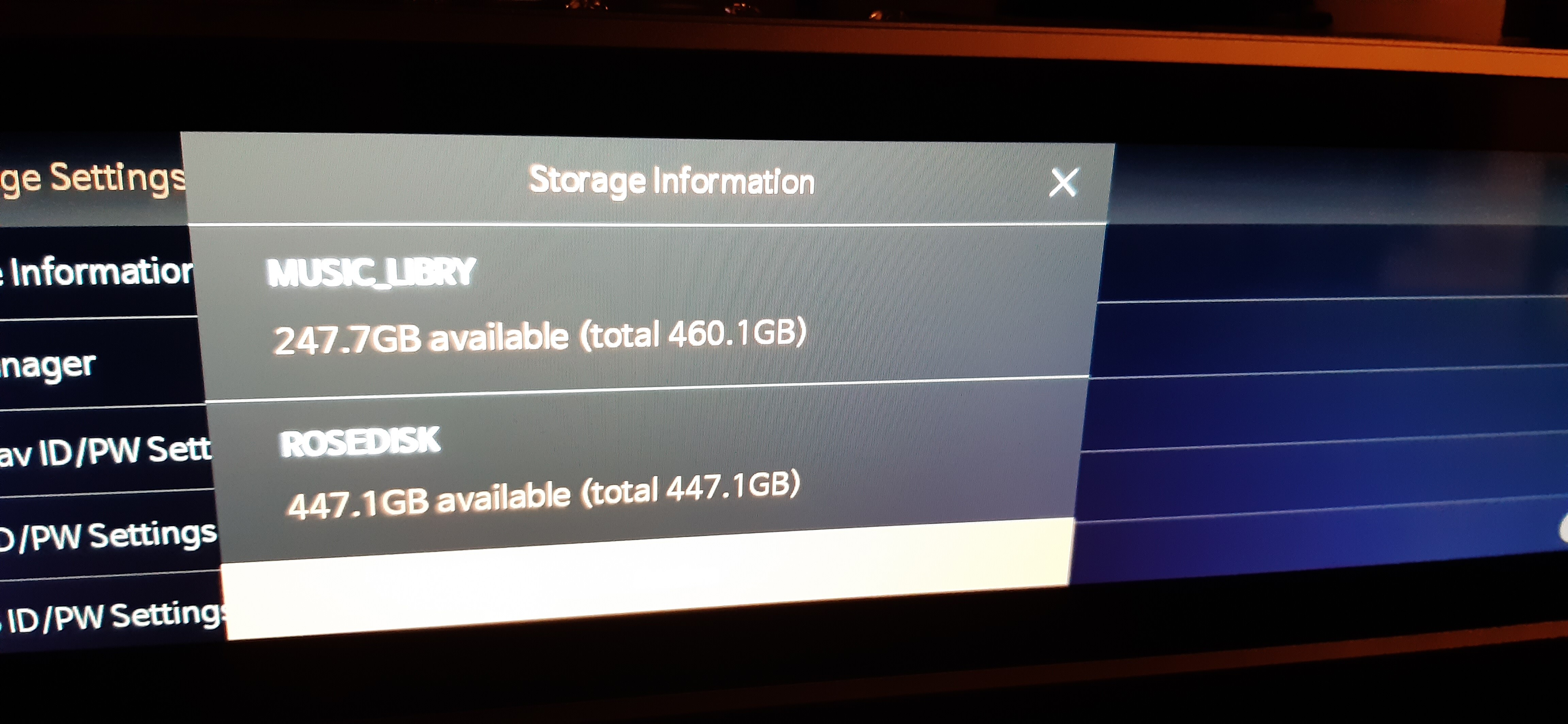
  2. Could you provide a photo of the Storage Information?
    (Rose streamer > Settings > Storage Settings > Storage Information)

  3. What is your ROSE ID?
    (Rose streamer > Settings > System Info > ROSE ID)

Best Regards

Hi

To answer your three points.

  1. After starting up and trying to access File Manager it does not freeze. I can continue to access other functions.

  2. Image attached

  3. Rose ID = 0D8574, Also Audio software XMOS 31552 and system software 5.9

@David1948

Please help us check a few additional items:

  1. Could you record a video showing the steps when you open the File Manager app on your RS130, and send it to the email address below?
    eunseong96@citech.kr

  2. The link below is a video guide for using the File Manager app.
    Is your RS130 not behaving the same way as shown in this video?
    www.youtube.com/watch?v=1xVSWJTr71k

  3. Please describe in a bit more detail exactly where it stops and what you are unable to do (at which step it no longer proceeds).

  1. I have sent the video showing me going to Settings and then Storage and File File Manager.

  2. I have watched the video and the behaviour is different to the actions I am carrying out. My actions are via Settings. The video shows a separate App for File Manager. There is not a separate App shown in my Home Screen. I cannot proceed to any File Manager screen.

  3. I think the video shows the steps taken to where it stops.

File Manager is a separate, optional, app that can be installed from Rose Store. Could you check whether it is installed, and if not if you can install it from the Store?

1 Like

@David1948

Here are my responses to your questions:

  1. What you sent was not a video, but a screenshot showing the System Information page on your Rose device. Please check the email you sent once again.
  2. If the File Manager is not visible on your home screen, please check whether the File Manager app is installed on your Rose device.

Hi

Once I watched the video on File Manager I realised that the App was not on the Home Screen. I downloaded it through the Rose Store and installed it. It is now working.

I have copied the USB device contents onto the internal SSD (some files were not copied and I need to explore this.

What was leading to the confusion on File Manager was that the button is there when accessed via the Settings menu but there is no code behind it.

I am not sure why you received a still image. The video was approx 17/18 seconds with me pushing the buttons. I don’t think this needs pursuing any further at this stage. Thanks for your help.

First check to see which files were not copied, they may be of a different and incompatible format type. Second, a note to Rose, File Manager should be one of the core parts of the system software and should not need to be downloaded separately. It should be preinstalled.

@David1948

If the File Manager app is not installed through the Rose Store, it will not function when you enter Settings and select File Manager.

If there are files that could not be copied, please send a few of those files to the email address below. After reviewing the files, we will investigate the cause of the issue.

eunseong96@citech.kr

There are somewhere between 4500 and 5000 files. A few hundred files have not copied across. I have paused the process for the moment as I am waiting for the CD drive to arrive to add some more music to the internal drive. At this stage I will try and work out what has not copied.

@David1948

If the issue is not resolved, as I mentioned earlier, please send a few of the files that could not be copied to the email address below.
After reviewing the files, we will investigate the cause of the issue.
eunseong96@citech.kr