@ROSELOA @ROSEHAN @StandardModel
Hi everyone,
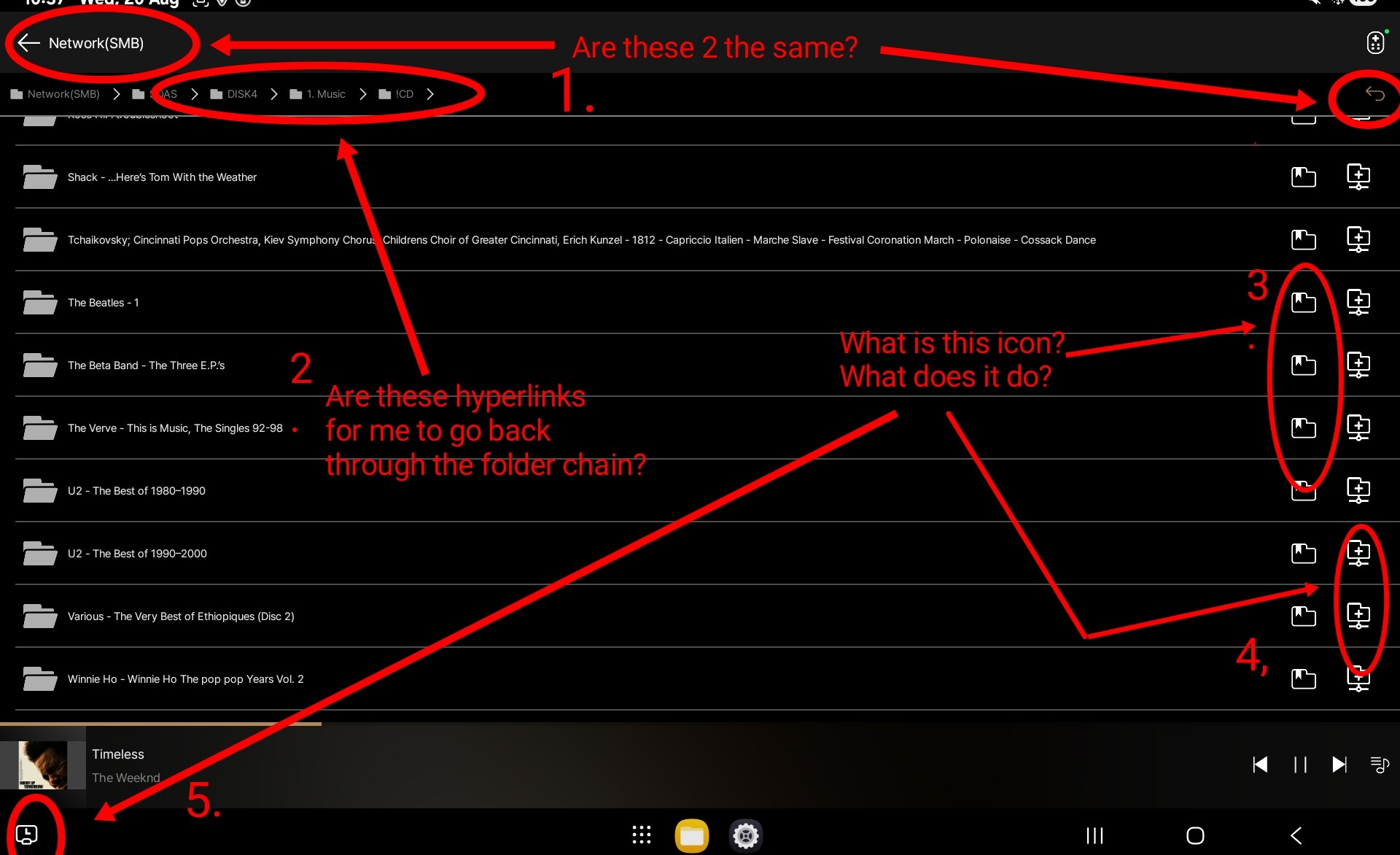
I need help. See image below:

Here are the answers to your questions:
The two functions you highlighted are different.
The back icon next to Network (SMB) returns you to the main Folder screen.
The arrow icon at the top right goes back one step only within the current path.
For example, if your navigation path is:
Network → NAS → DISK4 → 1. MUSIC → CD
you can directly select Network, NAS, DISK4, 1. MUSIC, or CD to move to that specific level.
This feature is for adding folders to Favorites.
You can assign a name and save the folder for quick access later.
This icon is used to add a network path.
Once added, the path can be scanned into the Rose music database.
This icon appears to belong to your tablet/OS interface, not the RoseConnect app.
Please check again to confirm.
Hello ROSEHAN,
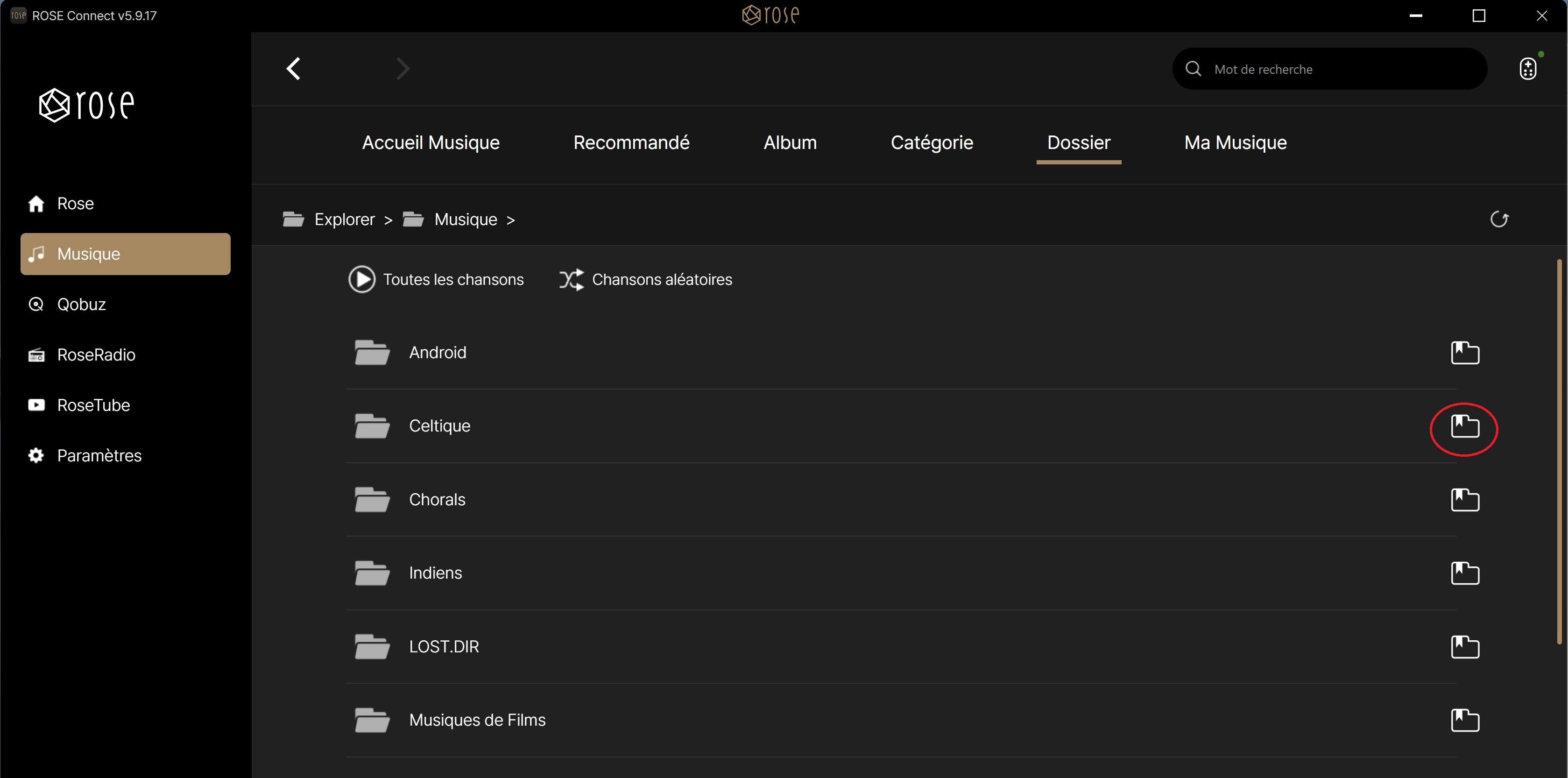
On my USB drive connected to the back of my RS130, my albums are stored in a system of multiple folders and subfolders, allowing me to navigate through genres and subgenres of my content.
In the Rose Connect / Music** interface, I see the list of folders at the root of this folder structure.
In your post above, you wrote:
“3. This feature is used to add folders to Favorites.
You can assign a name and save the folder for quick access later.”
If I click on the “add folders to Favorites” icon on one of the folders (circled in red) in my network folder structure, as shown in the attached screenshot, I don’t find the contents of the folders and subfolders in my Favorites, even though the Favorites name is that folder name.
Why?
Can this be fixed?
Thank for your help.