Thank you @alessandro for the following video example of the Rose Connect Premium app (re: "Rose Connect Premium" - #5 by alessandro)


Thank you @alessandro for the following video example of the Rose Connect Premium app (re: "Rose Connect Premium" - #5 by alessandro)
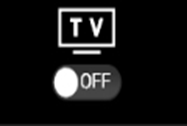
To view music videos on the TV, you must turn on the TV by clicking on the switch that appears on the upper right corner of the screen:
For examples of the android RoseConnect Premium app’s display screens, see RoseConnect Premium app vs RoseConnect Premium (Early) app <- Android Apps
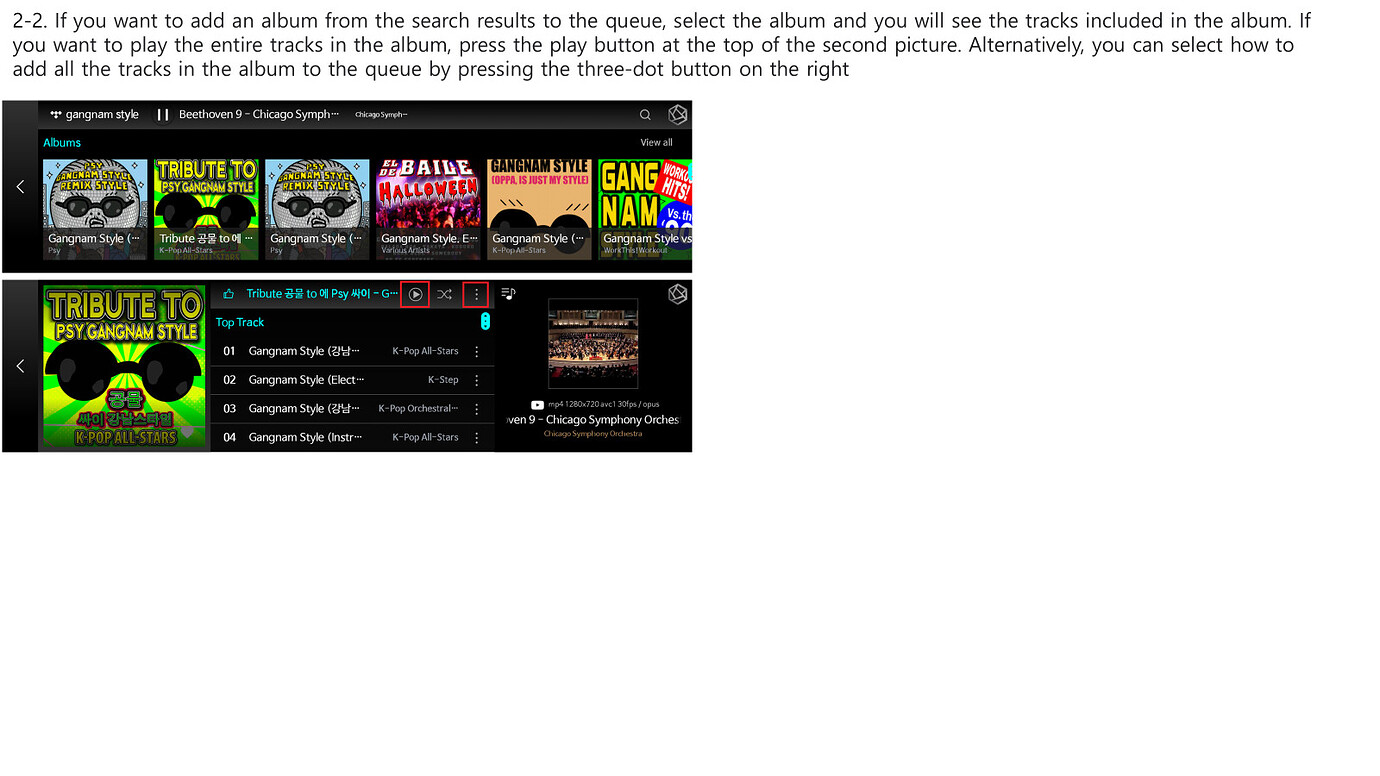
Thanks to @ROSEHAN for showing us how to play an entire album (re: Simply Infuriating - #3 by ROSEHAN)
Here’s another one.
Whenever I add an album to a playlist, the previous album cover which was shown on the playlist is replaced by the latest added album cover.
Why?
How to use the File Manager; see video:
While at a friend’s place, you can play RoseConnect music on your smart phone.
To do this:
Start the RoseConnect app, then go to the Device Management setting and register your smart phone device ← do this while you are near a HiFi Rose device.
After step #1 is done, you can be anywhere: start the RoseConnect app on your smart phone; then go to the Device Management setting, select your smart phone as your current device and then play RoseConnect music on your smart phone.
See:
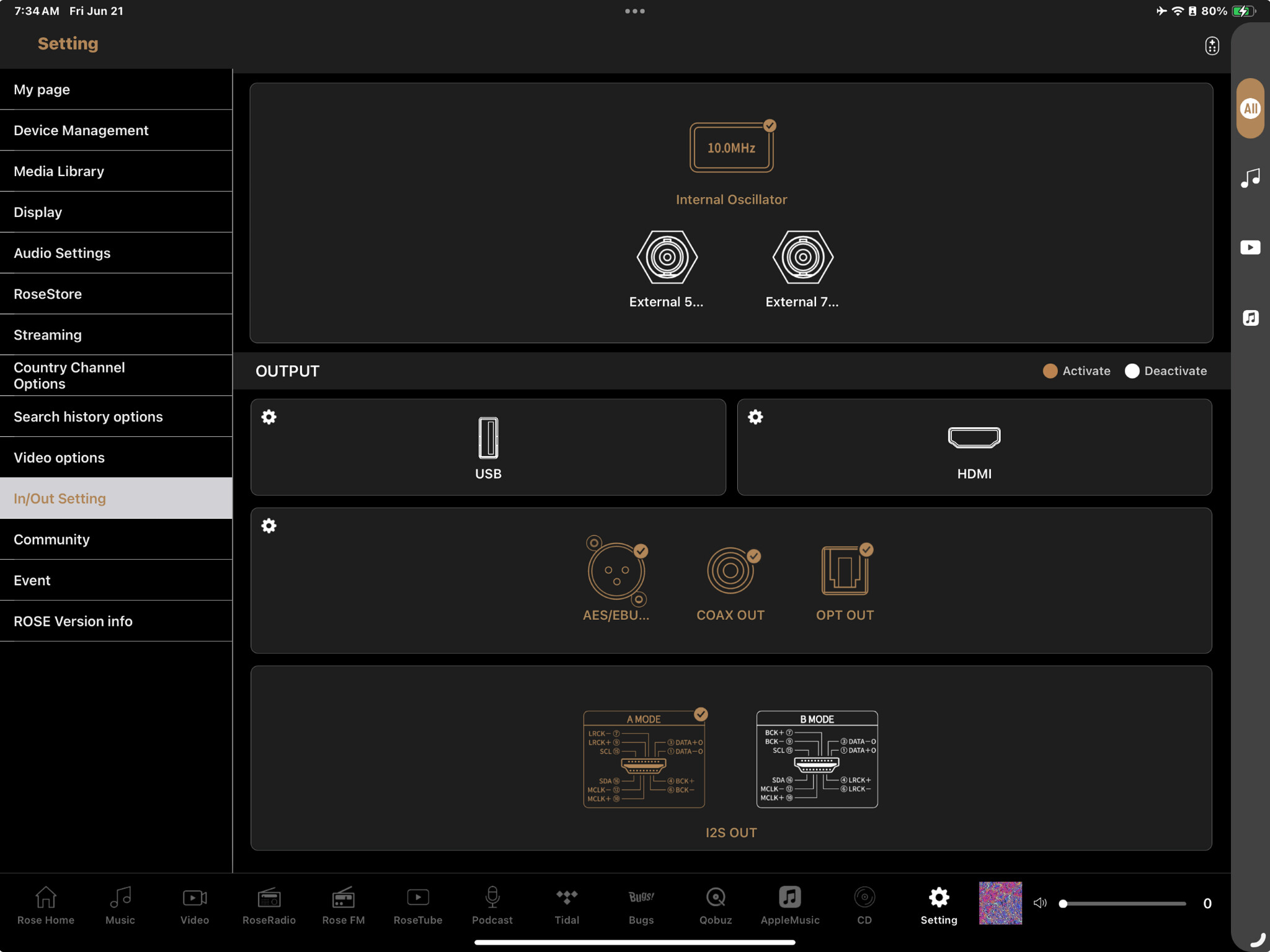
Select the “settings cog” in the upper left corner of the specific port group of interest.
The following will then appear:
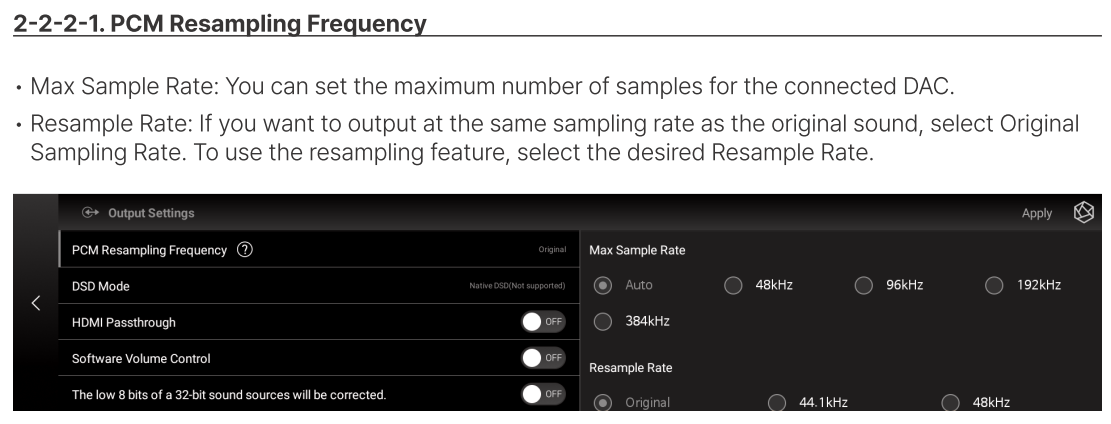
Proceed to change the desired checkmarked ports’ characteristics
Resampling in the RS130 is not recommended, unless it is for compatibility.
Thank you @dtp for the following (re: Some feature requests - #2 by dtp)
joyofmmvid,
Great information about activating VU meter via the remote. Is there a similar set of remote commands to deactivate the VU meters? I find that at times when I’m trying to get to the main music playing screen, that the VU meters will appear instead. It would be great if there exists a remote command to remove the VU meter display.
StandardModel
For Support/Tutorial Videos, go to
Many thanks it’s very useful !

Merci beaucoup
Ça peut débloquer ou expliquer certaines situations
BTW, The note “♫” indicates a User Disk Library item.
Note: Filter, Sort & Display Order applies to Albums, Artists, Boxsets & Songs. (They do not apply to Folders nor Playlists).
___________________________________________________________________________________________________
Note: The following Scenerios does NOT depict the current UIF capabilities (the scenerios are strictly examples to help the understanding.)
Filter: Defines what’s to be displayed
Sort: Defines how the filtered items are to be arranged
Display Order: Orders the arranged items in ascending (i.e., increasing) order or in descending (i.e.decreasing) order.
1st Scenerio:
2d Scenario:
3rd Scenario:
Logging into HiFi Rose: ← see How to login ROSE account
There are two Rose Accounts
** N.B. ** Nickname use to be restricted to a maximum of 6 characters ← this maximum has now been increased (if your nickname is too long, when you select CONFIRM, it’ll reject your entered nickname.)