RS130 User Interface

Here’s another one.
Whenever I add an album to a playlist, the previous album cover which was shown on the playlist is replaced by the latest added album cover.
Why?

How to use the File Manager; see video:

While at a friend’s place, you can play RoseConnect music on your smart phone.

To do this:

  1. Start the RoseConnect app, then go to the Device Management setting and register your smart phone device ← do this while you are near a HiFi Rose device.

  2. After step #1 is done, you can be anywhere: start the RoseConnect app on your smart phone; then go to the Device Management setting, select your smart phone as your current device and then play RoseConnect music on your smart phone.

See:

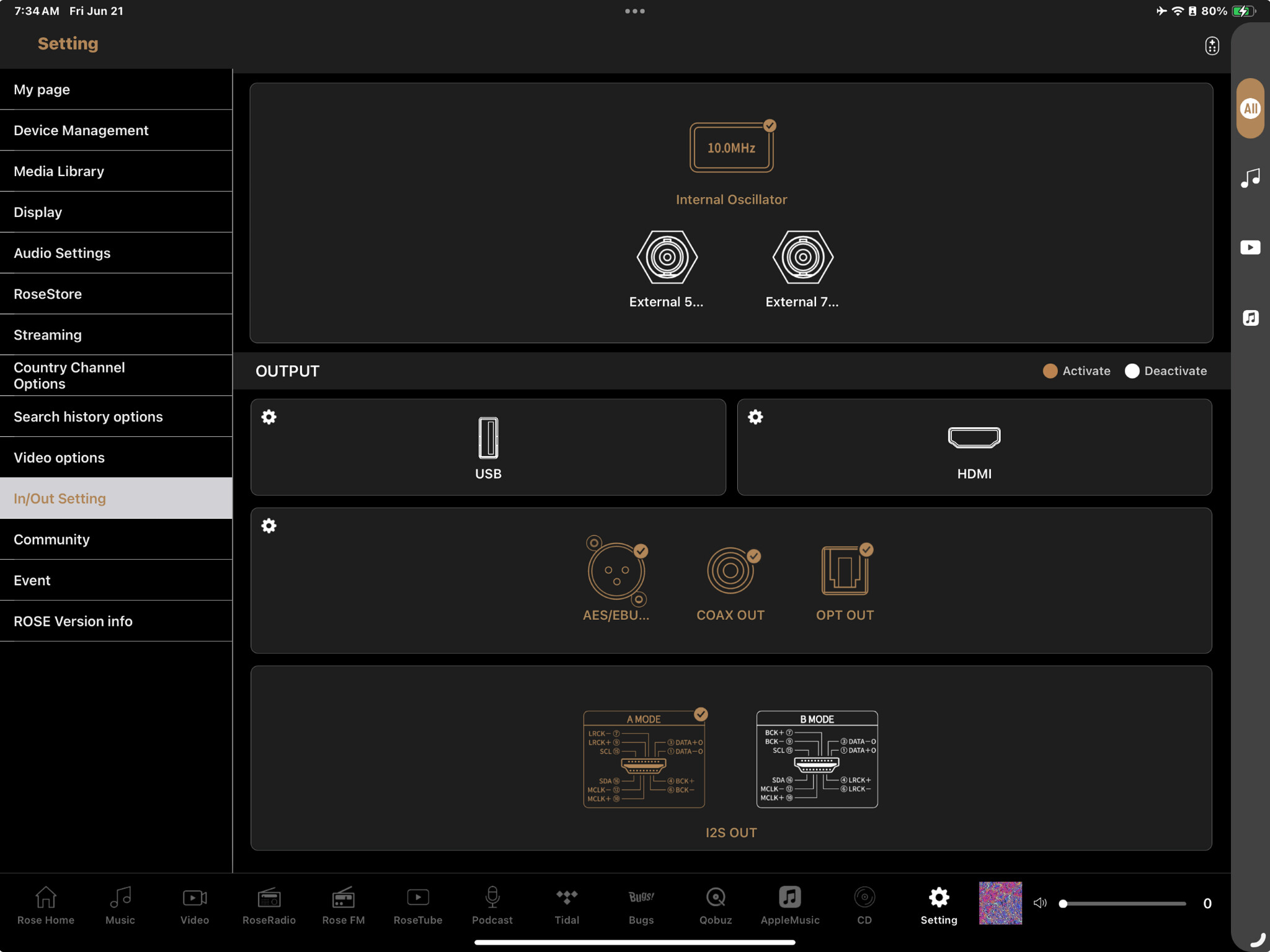
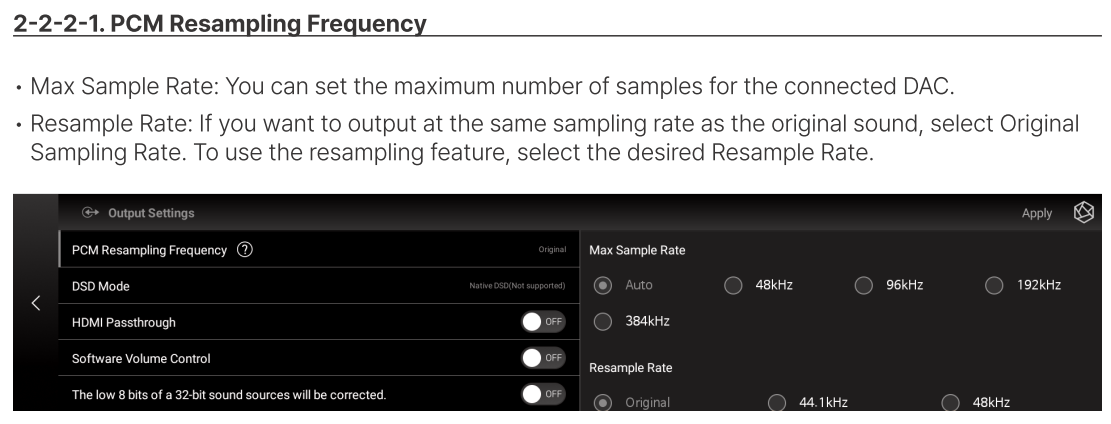
To change a port’s characteristics
(like Resampling Frequency, etc.):

  1. Select Settings > Output:

  1. Select the “settings cog” in the upper left corner of the specific port group of interest.

  2. The following will then appear:
    image

  3. Proceed to change the desired checkmarked ports’ characteristics

Resampling in the RS130 is not recommended, unless it is for compatibility.

2 Likes

Thank you @dtp for the following (re: Some feature requests - #2 by dtp)

To activate the VU Meter front panel display, via remote control:

  • Press the Remote’s down arrow button followed by the up arrow button and then the OK button. ← the last VU meter will be displayed.

joyofmmvid,

Great information about activating VU meter via the remote. Is there a similar set of remote commands to deactivate the VU meters? I find that at times when I’m trying to get to the main music playing screen, that the VU meters will appear instead. It would be great if there exists a remote command to remove the VU meter display.

StandardModel

To turn the RS130’s front panel screen on & off:

  • Hold down (ie., long press) the Remote Control’s POWER button. A popup menu will appear, showing:
    • Restart
    • Turn off the device
    • Turn off the screen ← press POWER button to turb on the screen

@joyofmvid

Rather the Power button, no ?

To play a folder, see:

For Support/Tutorial Videos, go to

3 Likes

Many thanks it’s very useful !

:+1:

Merci beaucoup

Ça peut débloquer ou expliquer certaines situations

HiFi Rose’s Display Symbols:

image

BTW, The note “” indicates a User Disk Library item.

Understanding Filter, Sort, Display Order:


Note: Filter, Sort & Display Order applies to Albums, Artists, Boxsets & Songs. (They do not apply to Folders nor Playlists).

___________________________________________________________________________________________________

Note: The following Scenerios does NOT depict the current UIF capabilities (the scenerios are strictly examples to help the understanding.)


Filter: Defines what’s to be displayed
Sort: Defines how the filtered items are to be arranged
Display Order: Orders the arranged items in ascending (i.e., increasing) order or in descending (i.e.decreasing) order.

For example: Lets consider playing cards.

1st Scenerio:

  • Filter decides how many playing cards to use; let’s say Diamonds
  • Sort decides the arrangement (e.g., arrange By Rank)
  • Order lets choose Descending Order
  • Outcome: Diamond cards ordered King, Queen, Jack,…down to Ace

2d Scenario:

  • Filter = 1 deck of cards
  • Sort = By Suit & By Rank
  • Order = Descending
  • Outcome: Spades (King, Queen, Jack,…Ace), Hearts (King, Queen, Jack,…Ace), Diamonds (King, Queen, Jack,…Ace), and Clubs (King, Queen, Jack,…Ace)

3rd Scenario:

  • Filter = Blues Genre and Songs with Lyrics
  • Sort = By Artist then by Song Title
  • Order = Ascending
  • Outcome: Display lists all Blues songs that have Lyrics, ordered alphabetically (#, A to Z): 1st by Artists then sub-ordered by Song Title

Logging into HiFi Rose: ← see How to login ROSE account

  • There are two Rose Accounts

    1. ROSE account for ROSE homepage
    2. ROSE account for (ROSE APP & ROSE device!

** N.B. ** Nickname use to be restricted to a maximum of 6 characters ← this maximum has now been increased (if your nickname is too long, when you select CONFIRM, it’ll reject your entered nickname.)

Rose Home Display:

The RoseHome display acts like a dashboard hub. RoseHome sets default settings for all subsequent display arrangements & behavior.

The RoseHome display is highly customizable, allowing you to rearrange or remove app icons and change visual themes. In essence, it allows users to quickly access and control various features, content, and settings.

Key aspects of the RoseHome display:

  • Centralized Access: It serves as a central hub where users can access all the core functions and integrated services of the HiFi Rose device, such as streaming apps (TIDAL, Qobuz, Apple Music, Spotify Connect), music libraries (local files, NAS drives), Rose Tube (ad-free YouTube portal), Rose Radio (internet radio stations), Feed and Podcasts.
  • Personalization: Users can personalize the display screens by choosing which apps and features are visible, allowing users to tailor the user interface to their listening preferences.
  • Content Curation: It features sections like
    • My Page: this is access to your User Account ← see How to login ROSE account

    • User Picks: users can share and explore public playlists created by other Rose users, fostering a community environment. It also displays algorithm-based recommendations and recently played tracks.

    • Friends Management: Playlists can be set to Private, Public, or Share. Share is "sharing your playlist with your friends.

      • User Picks vs Friends:
      • User Picks
      • The User Picks is a community-driven feature where any HiFi Rose user can publicly share playlists they have created. It serves as a public space for discovery, allowing users to browse a variety of musical tastes from a wide range of people within the Rose community. You can listen to these public playlists and “like” them.
      • Friends
      • The Friends feature allows for more personalized, social interaction. Instead of browsing public lists, you can connect with specific individuals (friends) who also use the HiFi Rose platform. This enables you to directly access and listen to playlists created by your specific friends, making the music-sharing experience more intimate and tailored to people you know.
    • Explore: this feature provides a broader range of content suggestions across various genres and artists, encouraging discovery beyond your usual listening patterns.

    • New: this section focuses on recently added music, new album releases, or new content available within the streaming services you use (Tidal, Qobuz, Rose Tube, etc.).

    • Favorite: this displays: content related to your liked songs, favorite genres, and artists you frequently listen to, providing quick access to music you enjoy.

    • Feed: allows for a more social or curated experience. Feed is a social feature where users can share posts, photos, playlists and experiences with other HiFi Rose users. (See What is 'Feed' in RoseConnect APP?).

      • Feed is a community space for exchanging opinions on topics like music, audio equipment, and playlists. To post content on the Feed, users must apply for posting permission through a guide provided by HiFi Rose community forums
    • Playlist: is a user-curated collection of music from different sources (local disk, streaming services, RoseTube, Radio, etc.)

____________________________________________________________________________

Selecting "+ ALL, Mix vs a specific category like Music,…"

  • ALL is a universal display/playback feature. It is designed to show/play all types of content regardless of their content source or media type. For example, ALL ensures that all items in a mixed playlist/queue appear and are accessible.
  • Mix: this function allows you to simultaneously search for a specific song, album, or artist across all linked media types and streaming services (e.g., local music library, RoseTube, Tidal, Qobuz, etc.). It presents the results in a single, unified list. This feature enables you to:
    • Find all available versions of a track without switching between different apps or sources.
    • Add songs from different services to a single, seamless playlist/queue (note: queue can have up to 3000 media items; e.g., up to 3000 songs).
  • Music, RoseTube, Tidal, Qobuz, etc: When you select a specific category (e.g., ‘Music’, ‘RoseTube’, ‘Tidal’, or ‘Qobuz’, etc. ) on the home screen, queue or within a menu, the display will filter out any content that does not match that specific type
    • If a playlist is composed of mixed content types and you set the display to only ‘Music’, then items from streaming services or video apps within that same playlist will not appear (nor be played/queued).
    • To properly view and play/queue all contents of a mix playlist on the HiFi Rose device’s display/queue, you must select the ‘ALL’ category setting.
    • Summary: The primary difference is that ‘ALL’ provides comprehensive visibility for mixed media playlists/queue, while specific categories restrict the display/playback to only the matching content types.

___________________________________________________________________________________________________

Benefits of All/Mix Display Modes & Rose Icon Function

The system retains the All/Mix settings as the default view for all subsequent operations.

  • All provides a constant, at-a-glance access to all system content types.
  • Mix provides a clean, more visually immersive experience centered on album art or classic audio.

Rose Icon Function: is a customizable function, shown on the right-side of the bottom function banner

  • You can set this function to return you to the current playback screen or another preferred menu
  • To configure this function, go to the following setting:
    Settings > System Settings > Remote control favorite settings

_______________________________________________________________________________________________

IMO, The dual display modes, the large high-resolution front panel 
touchscreen and the ability to customize the displays, including different  
styles of VU meters & clocks are key selling points, offering a unique and  
engaging user experience that many competitors lack.

User Interface Customizations:

To customize/redefine the basic User Interface screen, navigate through the Settings menu to change the layout, icon themes, and which apps are visible.


Customizing the Home Screen’s Function Banner:

You can personalize the home screen’s bottom Function Banner, in several ways:

  • Rearrange App Icons: You can move app icons to change their order on the screen to suit your preferences.
  • Hide Apps: You have the option to remove specific app icons from the Function Banner if you don’t use them.
  • Add Apps: You have the option to add specific app functions; for example,
    • Vintage Display: Enable the “Radio Vintage Display” mode to mimic the look of an old radio. This can be used with the RoseRadio service.
    • Radio FM: Restore the FM radio function and add specific radio stations or choose a country. (If Radio FM is not supported, this setting may still be used for the vintage display mode.)
  • Change Icon Theme: Different icon themes are available in the settings, such as Type A, B, C, etc., to change the visual style of your funnction icons (e.g., from monochrome to color icons).

Adjusting Front Panel’s Display Settings:

Other display-related customizations are available in the
Settings > Display menu:

  • Always-On Display (AOD): You can customize the look of the clock or display information shown when the device is in standby mode.
  • Playback Information Size: The text size for the Front Panel’s playback information can be adjusted for better viewing, depending on your distance from the screen.
  • VU Meter Settings: You can access settings to configure the VU Meters appearance and behavior.
  • Brightness and Volume Display: You can control the Front Panel’s screen brightness, and even change where the volume control appears on the screen (right or center).

Additional Customizations

  • Favorite Playback Screen: Use the “ROSE” logo button on your remote to save a favorite playback screen for quick access later.
  • Display settings:
    • Manually set the HDMI resolution.
    • Change the volume control position (right or center).
    • Set the default view mode.

See System Setups at Show us your Hifi Rose setup - #64 by Jabba

It’s Audiophile Hobbies in real-time !! :grinning:

To access YouTube playlists, etc. see Q & A post at [ROSE Connect] How to Transfer content from YouTube to Roseconnector app : HiFi ROSE